 Session Share
How to use Session Share 3.0
Version 3.0 looks different from 1.x. Copying and pasting still work the way you know, and saved accounts are new. This guide takes a few minutes.
Get started
- Install Session Share from the Chrome Web Store.
- Click the puzzle-piece icon in Chrome's toolbar and pin Session Share, so the fox is always one click away.
- Open the website you want to use, then click the fox.
Copy a login, as before
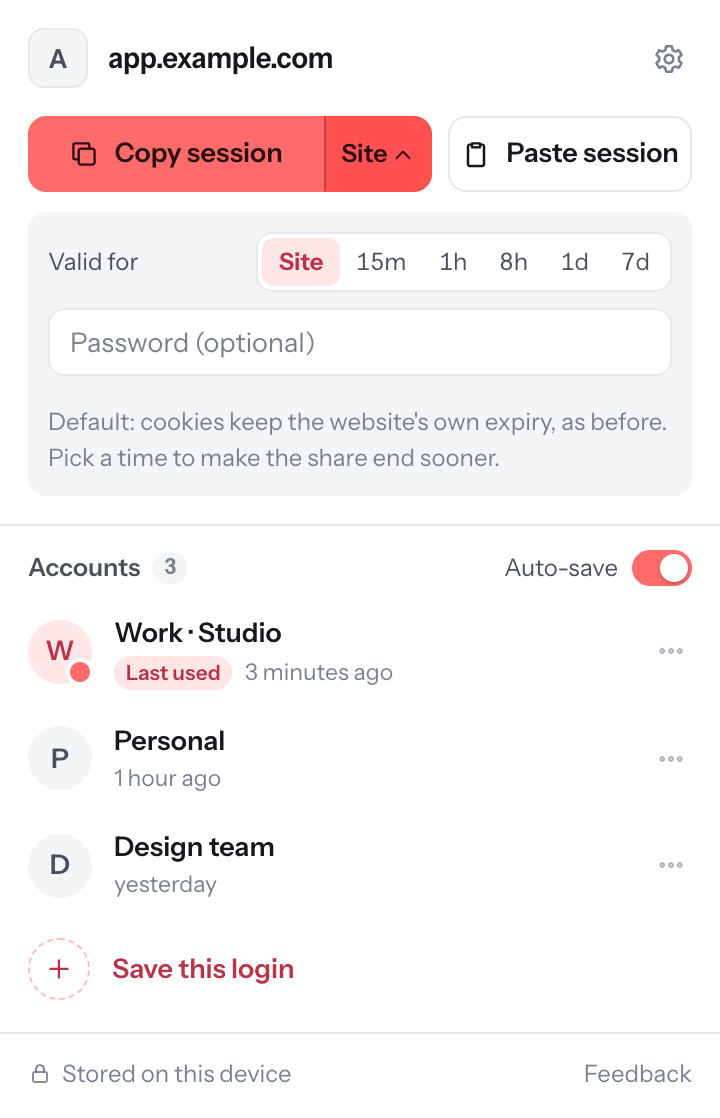
On a website where you are signed in, click Copy session. A code is copied to your clipboard; send it privately.
By default (Site) each cookie keeps the website's own expiry, exactly like 1.x. Click the arrow next to it to pick Valid for 15 minutes to 7 days and an optional password. The share then stops working at that time.
You can also right-click any page and choose Copy this site's session.
Paste a login
There are three ways:
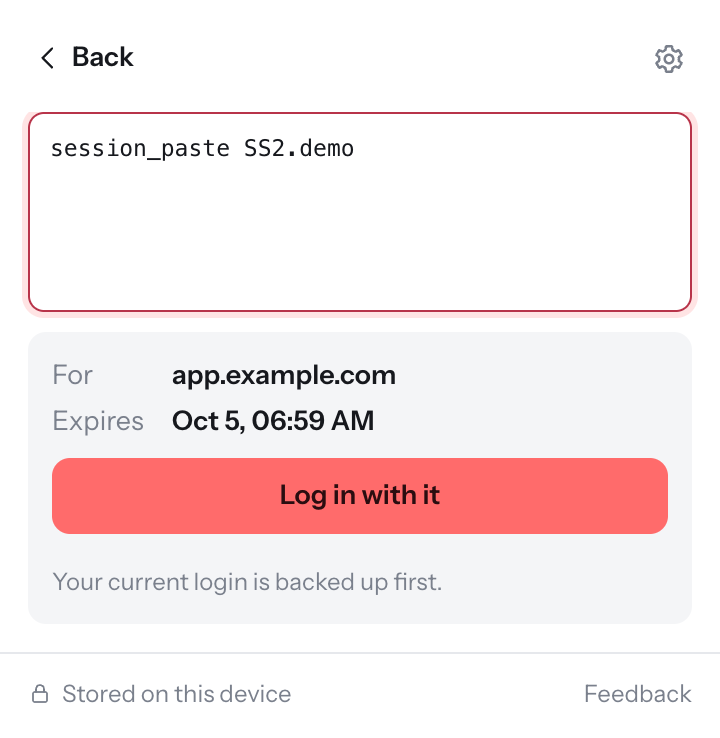
- Click the fox, then Paste session. Paste the code, check the website and expiry, then click Log in with it.
- Right-click any page and choose Paste session. It reads the code from your clipboard.
- Type session_paste in the address bar, press Space, paste the code and press Enter.
Session Share opens the right website and signs you in. Your current login on that site is backed up first.
Save accounts and switch (new)
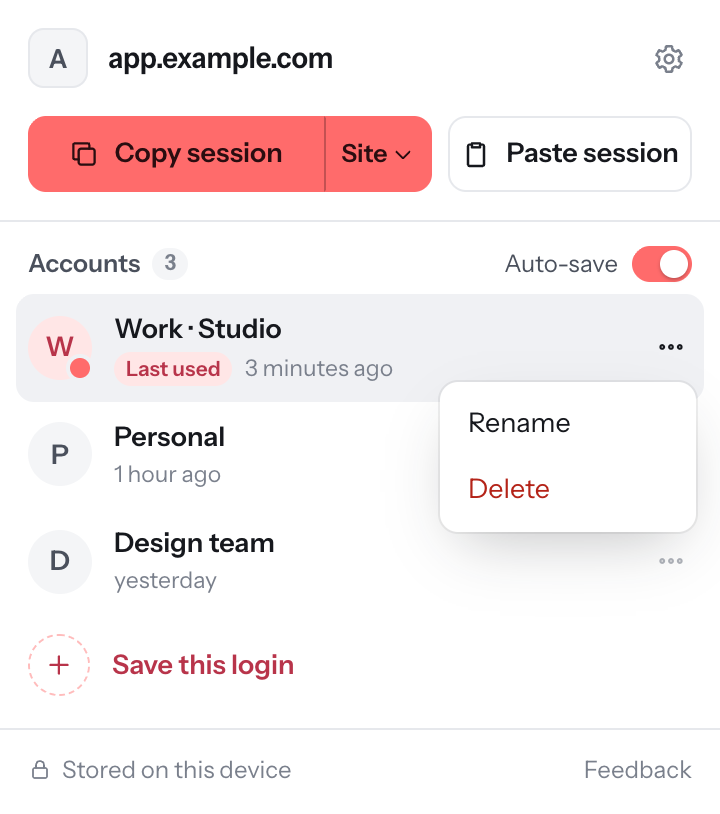
- Sign in to a website, click the fox and choose Save this login. Give it a name, such as Work.
- Sign out, sign in with your other account and save it too.
- From now on, click any account to switch. The page reloads already signed in.
Use ⋯ next to an account to Rename or Delete it.
Auto-save
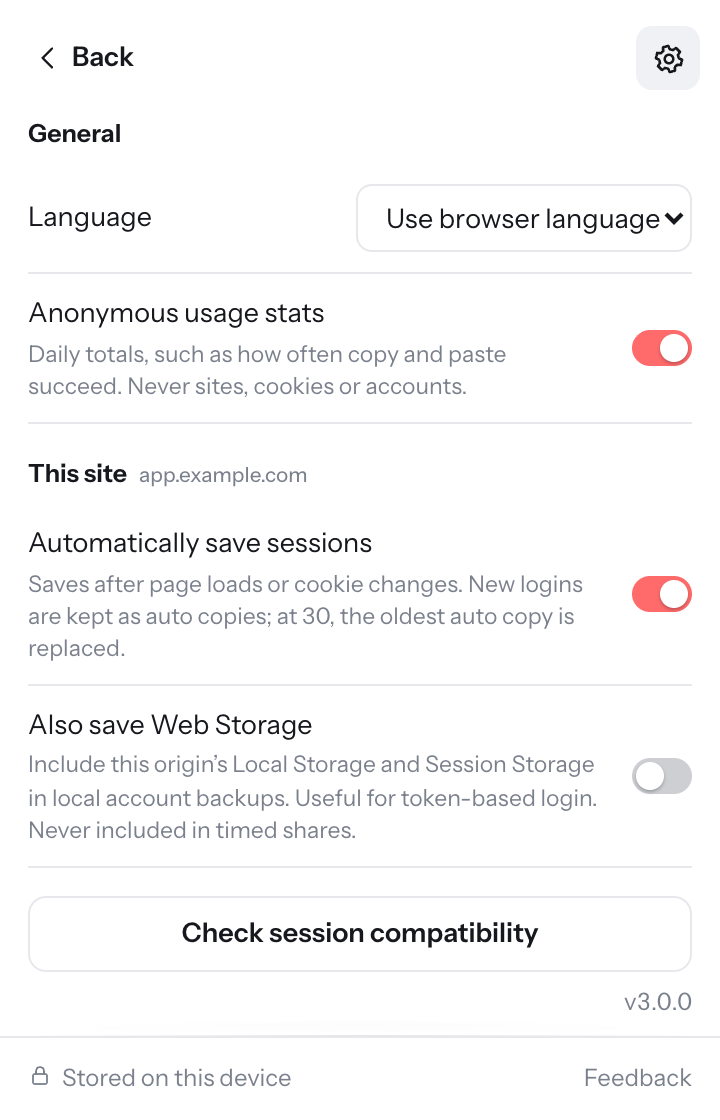
Turn on Auto-save to keep a copy of each new login on this website automatically (up to 30 automatic copies). In Settings you can also save the site's web storage, which some token-based sites need.
Incognito windows
Copy and paste work in incognito windows too. Accounts are not saved there, and a pasted login ends when its time is up or when you close the window.
If something doesn't work
- Some cookies were refused: the website rejected part of the login. It usually still works; if not, ask for a new code.
- Signed out again right away: some websites tie a login to a device, network or two-step verification. Session Share does not get around that.
- Expired or asks for a password: a timed code cannot be used after it expires, and a protected code needs the password, sent separately.
- Still stuck? Click Feedback at the bottom of the popup, or use the feedback form.
Stay safe
Anyone with a code that has no password can use that login until it expires, so send codes only to people you trust, and only share accounts you are allowed to share. Signing out or changing your password on the website ends shared logins on many websites, but not all. Saved accounts are encrypted and stay on your device.